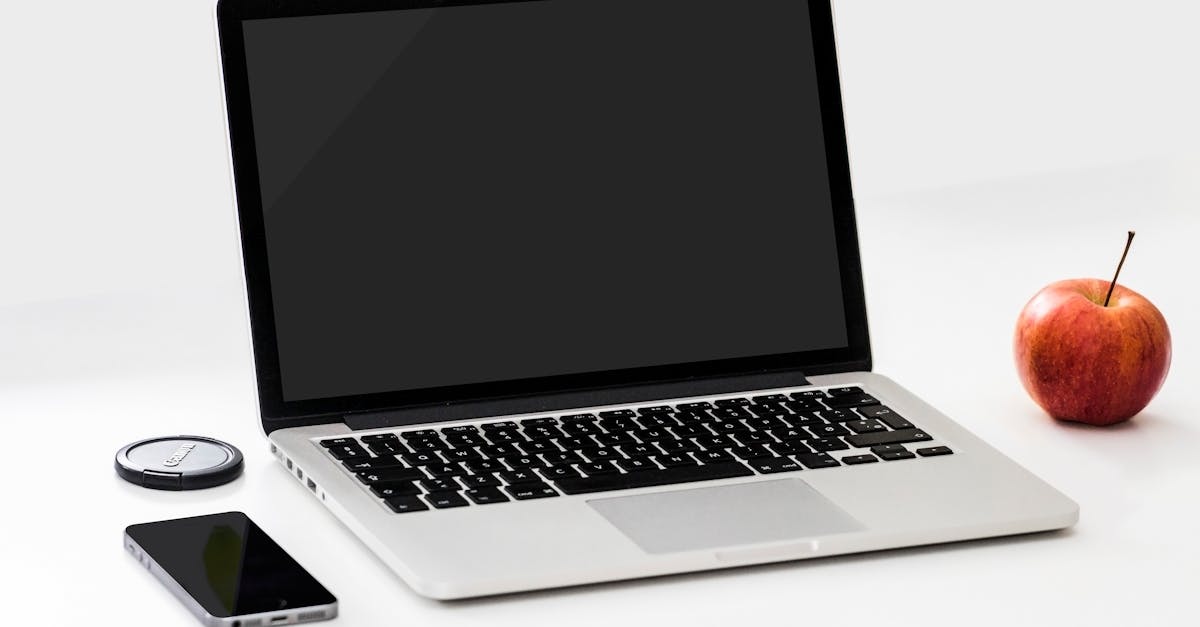
How to Choose a Laptop in 2025: A Practical Buying Guide
Buying a laptop in 2025 is genuinely confusing. Marketing specs make $400 laptops sound comparable to $1,500 ones, and “the best laptop” depends entirely on what you’re doing with it.
Here’s a practical framework for cutting through the noise.
Start With Your Use Case
Before looking at any specs, answer this: what will you primarily use it for?
Light use (browsing, email, video streaming, documents): You don’t need an expensive laptop. $400–$600 will serve you well.
Work productivity (spreadsheets, video calls, multiple apps): $600–$900 is the sweet spot. Prioritize RAM and battery life.
Creative work (photo/video editing, 3D, design): $900–$1,500+. You’ll need a capable CPU, more RAM, and potentially a dedicated GPU.
Software development: $800–$1,500. CPU performance, RAM (16GB minimum), and display quality matter most.
Gaming: Different category entirely — gaming laptops prioritize discrete GPU over battery life and portability.
The Specs That Actually Matter
Processor (CPU)
The CPU is the most important component. It determines performance, battery life, and how long the laptop stays useful.
The current landscape:
- Apple M-series (M3, M4): Outstanding performance per watt. MacBooks with these chips deliver best-in-class battery life and excellent performance. No fan noise under typical workloads.
- Intel Core Ultra (formerly Core i): Competitive in performance. The latest Ultra 5/7/9 series are efficient.
- AMD Ryzen: Strong performance and value, especially in the Ryzen 7/9 range.
- Qualcomm Snapdragon X: New ARM-based Windows chips with impressive battery life. Growing software compatibility.
Avoid: Intel Celeron, Pentium, or the very low-end Core i3 equivalents. They feel sluggish within a year.
RAM
- 8GB: Minimum acceptable in 2025. Will feel constrained with many browser tabs + apps.
- 16GB: The right choice for most people. Comfortable for nearly all tasks.
- 32GB+: Video editing, software development with VMs, heavy multitasking.
Important: on many laptops (especially thin-and-light and all Apple Silicon Macs), RAM is soldered to the motherboard — not upgradeable. Buy what you need from the start.
Storage (SSD)
- 256GB: Too small for most people once you add apps, photos, and documents.
- 512GB: Adequate for most people with some cloud storage supplementing.
- 1TB: Comfortable, future-proof.
All modern laptops use SSDs. Avoid any laptop still shipping with a traditional spinning hard drive.
Display
For daily use:
- Resolution: 1080p minimum. 1440p or 2K is noticeably sharper on anything 14”+. Retina/4K is beautiful but drains battery faster.
- Brightness: 300 nits minimum for indoor use. 400+ nits for working near windows. 600+ nits for outdoor use.
- Refresh rate: 60Hz is standard and fine. 90–120Hz feels smoother for general use.
- Panel type: IPS for good color accuracy. OLED delivers spectacular contrast and color but can have burn-in concerns over years.
Battery Life
Marketing battery life claims are optimistic. A laptop claiming “18 hours” might deliver 10–12 in real use.
Apple MacBooks are the exception — their battery life claims are unusually honest. A MacBook Pro claiming 18 hours often delivers 14–16 in real use.
For Windows laptops, check independent reviews (The Verge, Notebookcheck) for real-world battery tests.
Weight and Build Quality
If you carry your laptop daily:
- Under 1.2kg (2.6 lbs): Ultra-portable, some compromises
- 1.2–1.6kg (2.6–3.5 lbs): Sweet spot for portability and capability
- 1.6kg+: Better specs for the money, but noticeable to carry all day
Aluminum and magnesium chassis feel more premium and durable than plastic.
Recommended Laptops by Category
Best overall (Mac ecosystem): MacBook Air 13” or 15” with M3/M4 chip. Battery life and performance per dollar are hard to beat. $1,099–$1,299.
Best Windows laptop overall: Lenovo ThinkPad X1 Carbon or Dell XPS 13. Both are slim, well-built, and reliable. $1,000–$1,400.
Best value Windows: Lenovo IdeaPad 5 or ASUS VivoBook 16. Solid performance at $500–$700.
Best for developers: MacBook Pro (M3 or M4 Pro) or Framework Laptop (repairable, upgradeable). $1,299–$1,999.
Best Chromebook: Lenovo Chromebook Duet 5 or ASUS Chromebook Plus. $300–$500 for users who primarily work in a browser.
What to Skip
“Gaming” features in non-gaming use: RGB keyboards, bulky chassis, and discrete GPUs add weight, cost, and reduce battery life for non-gaming workloads.
Touchscreens on Windows: Most Windows users rarely use them after the first week. They add cost and reduce battery life.
1080p on 15”+ screens: At 15 inches and above, 1080p is noticeably low resolution. Look for 1440p or better.
Cheap refurbished from unknown sellers: Refurbished from manufacturer-certified programs (Apple Certified Refurbished, Dell Outlet, Lenovo Outlet) is smart. Random Amazon third-party refurbished is a gamble.
Buying at the Right Time
Best time to buy: Back-to-school season (July–September) and Black Friday/Cyber Monday offer the best discounts. New model releases (Apple typically announces in October/November) drop prices on the previous generation.
Worst time to buy: Right before major announcements. Check MacRumors Buyer’s Guide or similar sites to see if a refresh is expected soon.
Match the laptop to your actual use case, prioritize the specs that matter for your workflow, and read at least two independent reviews before buying. The best laptop is the one that fits your life — not the one with the highest specs sheet.
Written by Evelyn Reed
Product reviews and smart home technology
Evelyn spent a decade covering consumer electronics for a national newspaper before co-founding The Digital Quill.
You Might Also Like

Why Most Beginners Fail at Mastering Excel (And The Strategic Approach That Actually Works)
Discover why traditional Excel learning methods fall short for beginners and learn a strategic, project-based approach for true mastery.

Why Most Beginner Web Browsers Disappoint (And What Actually Works for Real Productivity)
Don't settle for basic browser experiences. Discover why common browsers fall short and how to pick one for peak productivity.
Why Most Beginners Fail at Mastering Excel (And The Strategic Approach That Actually Works)
Stuck in Excel's quicksand? Learn why common beginner approaches fail and adopt a strategic framework for real mastery.