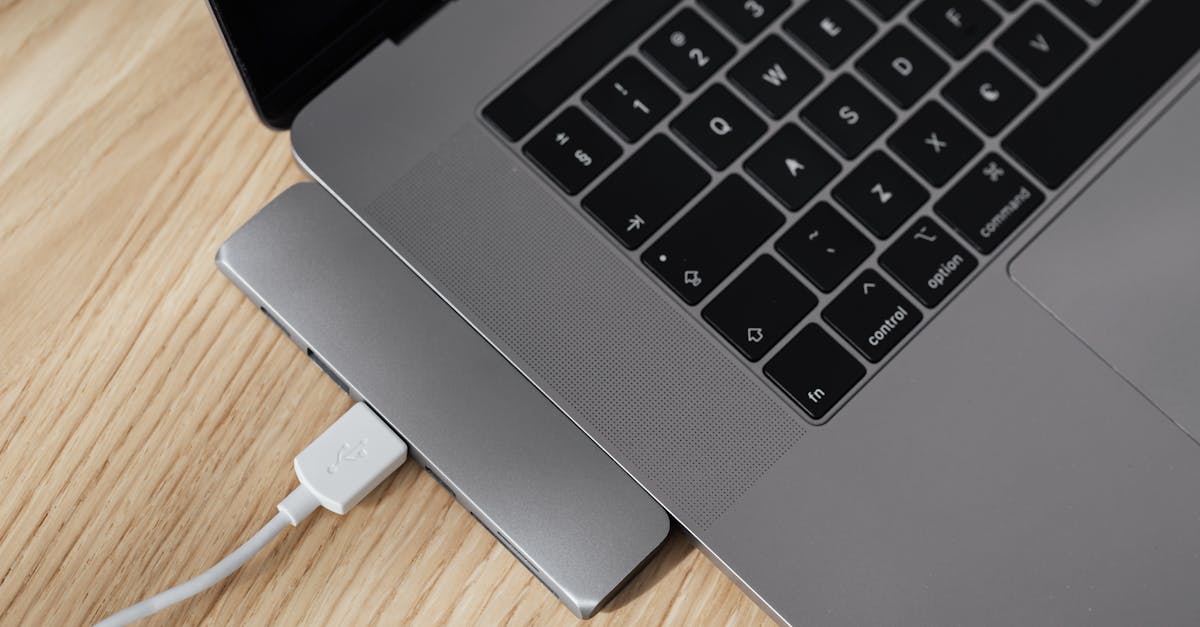
Why Most USB-C Docks Disappoint (And What Actually Works for Reliable Connectivity)
You just spent good money on a sleek new USB-C dock, hoping to transform your laptop into a powerful desktop workstation with a single cable. The promise was clear: connect your external monitor, keyboard, mouse, Ethernet, and charge your laptop, all through one elegant port. But after a few weeks, or even days, the reality sets in. Your monitor flickers, the Ethernet randomly disconnects, your external drive drops out in the middle of a transfer, or your laptop stubbornly refuses to charge. You’re left with a desk full of unreliable tech and the creeping suspicion that you’ve been sold a bill of goods.
I’ve been there countless times, both personally and professionally, trying to equip teams with efficient desk setups. The market is flooded with USB-C docks, and it’s shockingly easy to pick one that looks good on paper but fails spectacularly in daily use. The problem isn’t always the USB-C standard itself; it’s the bewildering array of compromises, cost-cutting measures, and outright misinformation that plague the peripheral market. You need to understand the underlying tech to make an informed choice, or you’ll keep buying expensive paperweights.
Key Takeaways
- Many USB-C docks are built with insufficient power delivery or bandwidth, leading to unreliable performance and device dropouts.
- Always check a dock’s specific power delivery (PD) output, not just its input, to ensure it can adequately charge your laptop.
- The quality of the USB-C cable connecting your laptop to the dock is paramount for stable data and video transmission.
- Active DisplayPort Alt Mode docks often outperform passive ones for multi-monitor setups, particularly with higher resolutions.
- Choosing a dock from a reputable brand that clearly specifies chipsets and supported standards significantly increases reliability.
The Bandwidth Bottleneck: Why Your Monitors Keep Flickering
One of the most common and frustrating issues with USB-C docks is unreliable video output, especially with multiple monitors or high resolutions. You bought a 4K monitor, and your dock claimed to support 4K, but it either won’t display at all, flickers constantly, or is stuck at a measly 30Hz refresh rate. This isn’t usually a fault of your laptop or monitor; it’s a fundamental limitation of the dock’s internal design and how it manages the finite bandwidth of a single USB-C connection.
USB-C is incredibly versatile, carrying power, data, and video over the same cable. However, it’s a shared resource. When a dock needs to support multiple high-resolution displays, fast USB data transfers (for external SSDs), and gigabit Ethernet, it has to make compromises. The core technology for video over USB-C is DisplayPort Alternate Mode (Alt Mode), which carves out a portion of the USB-C lanes for video signals. Standard USB-C connections have four high-speed data lanes. For video, these lanes can be configured in various ways:
- 2 lanes for DisplayPort, 2 lanes for USB 3.x (5Gbps/10Gbps): This is common and allows for simultaneous high-speed data and video. It’s often enough for one 4K@60Hz display or two 1080p@60Hz displays, assuming the dock uses DisplayPort Multi-Stream Transport (MST) to split the signal.
- 4 lanes for DisplayPort, 0 lanes for USB 3.x: This dedicates all lanes to video, maximizing resolution and refresh rates (e.g., 5K or 8K, or multiple 4K displays), but at the cost of limiting USB data speeds to USB 2.0 (480Mbps). You’ll notice a significant slowdown with external drives connected to the dock.
Many cheaper docks will simply state 4K support without specifying 60Hz or whether it’s 4K@30Hz. A 30Hz refresh rate is almost unusable for daily tasks, causing noticeable lag and eye strain. Furthermore, if you plug in a high-speed external SSD into the same dock that’s driving a 4K monitor, the dock’s controller might prioritize one over the other, leading to data dropouts or video flickering. This is particularly true for docks that rely on passive DisplayPort Alt Mode, which directly routes the DisplayPort signal. More advanced docks might use active DisplayLink or similar chipsets which compress video data over standard USB data lanes, avoiding the DisplayPort Alt Mode bandwidth conflict, but these require specific drivers and can introduce latency or artifacts, making them less ideal for gaming or critical visual work.
What changed everything for me: Always scrutinize the dock’s specifications for explicit 4K@60Hz support and the maximum number of external displays at those resolutions simultaneously. If you need two 4K@60Hz monitors, be prepared to pay for a higher-end Thunderbolt 3/4 dock, or a very specific USB-C dock that explicitly dedicates multiple DisplayPort outputs. Don’t assume. The mistake I see most often is users believing “USB-C means everything works” when the reality is far more nuanced.
The Power Delivery Puzzle: Why Your Laptop Isn’t Charging
Another frequent complaint is that the USB-C dock, despite being advertised as power delivery capable, simply doesn’t charge the laptop reliably, or at all. Your laptop battery slowly drains even while connected, or it flashes a slow charger detected warning. This isn’t magic; it’s a mismatch in Power Delivery (PD) profiles and an often-overlooked detail in dock specifications.
USB-C PD is a complex standard that allows devices to negotiate power levels up to 100W (and now 240W with USB PD 3.1). Your laptop has a specific power requirement, typically between 30W and 100W, dictated by its manufacturer. A dock needs to provide at least this amount of power after powering its own internal components and any attached USB peripherals.
Many docks advertise a Max PD Input (e.g., 100W Passthrough PD), but the crucial number is the Output PD to the host laptop. A common scenario is a dock that accepts 100W input from an external charger but only outputs 60W or 85W to the laptop, reserving the rest for its own functions and connected USB devices. If your laptop requires 90W (like many MacBook Pros or powerful Windows ultrabooks), a dock only providing 60W will lead to slow charging or even battery drain under heavy load. The dock might negotiate a lower power profile with your laptop, which is technically “charging,” but not effectively.
In my experience: I learned to always check the small print. A good dock will explicitly state, “Up to XW Power Delivery to Host.” If it just says “PD Passthrough,” assume a significant portion of that power is consumed by the dock itself or isn’t fully delivered. What changed everything for me was realizing that if I had a 96W MacBook charger, I needed a dock that outputted at least 85W-90W to the laptop, not just accepted a 100W input. It sounds obvious, but many product pages obfuscate this detail.
The Cheap Chipset Conundrum: Instability and Random Disconnections
Beyond bandwidth and power, the stability of a USB-C dock hinges heavily on the quality and integration of its internal chipsets. A dock isn’t just a collection of wires; it’s a miniature computer with a USB-C controller, a DisplayPort controller, a USB hub controller, an Ethernet controller, and sometimes an SD card controller, all communicating with your laptop. When these chipsets are cheap, poorly integrated, or run hot, you get instability: external drives randomly disconnecting, Ethernet dropping out, or devices not being recognized.
Common issues stem from:
- Inferior USB Hub Controllers: These can struggle with multiple high-bandwidth devices (e.g., an external SSD, a webcam, and a USB microphone simultaneously), leading to dropouts or slower speeds than expected.
- Unstable Ethernet Chipsets: Cheap Ethernet controllers can be prone to overheating, driver conflicts, or simply failing under sustained network traffic, resulting in frustrating internet interruptions.
- Overheating: Cramming multiple chips into a small, unventilated enclosure is a recipe for disaster. When chips overheat, they throttle performance or simply stop working, leading to intermittent problems that are hard to diagnose.
What changed everything for me: Paying attention to brand reputation, user reviews that specifically mention long-term stability, and even searching for teardowns or reviews that identify the internal chipsets. Reputable brands like CalDigit, OWC, Anker (their higher-end models), and Plugable often use higher-quality, more reliable chipsets (e.g., Realtek or Intel for Ethernet, VL8xx series for USB hubs) and design their enclosures for better heat dissipation. The mistake I see most often is users buying the cheapest dock on Amazon with a generic brand name, only to be plagued by intermittent issues that ruin their workflow.
The Cable Catastrophe: Why Your $10 Cable Sabotages Your $100 Dock
This is perhaps the most insidious problem because it’s so easily overlooked: the USB-C cable itself. You might have a perfectly capable laptop and a decent dock, but if you’re using a cheap, poorly constructed, or incompatible USB-C cable to connect them, your entire setup will be unreliable. Not all USB-C cables are created equal, and a significant portion of cheap cables on the market are simply not up to the task of carrying simultaneous high-bandwidth data, video, and power.
There are several types of USB-C cables:
- USB 2.0 Only: These are often bundled with basic chargers and only support 480Mbps data, no video, and limited power. They might fit a USB-C port, but they’re useless for a dock.
- USB 3.x (5Gbps or 10Gbps): These support faster data and basic DisplayPort Alt Mode (usually 2 lanes), but might struggle with high-resolution monitors or multi-monitor setups.
- Full-Featured USB-C (USB 3.2 Gen 2x2, USB4, or Thunderbolt 3/4): These are the high-performance cables. They support 10Gbps, 20Gbps, or even 40Gbps data, full DisplayPort Alt Mode (4 lanes), and up to 100W (or 240W with USB PD 3.1) power delivery. Crucially, Thunderbolt 3/4 cables are often backward compatible with full-featured USB-C, offering the best reliability.
A low-quality or non-full-featured cable will act as a choke point. It might work for charging, but as soon as you try to send 4K video and transfer files and power your laptop, the signal integrity degrades, leading to flickering, dropouts, or simply no detection of peripherals.
In my experience: I’ve spent hours troubleshooting dock issues only to discover the problem was a $10 cable. What changed everything for me was making a conscious decision to only use certified Thunderbolt 3 or Thunderbolt 4 cables (even if my laptop/dock wasn’t Thunderbolt) for my dock connections. They are universally full-featured, robust, and significantly more reliable. The mistake I see most often is people reusing old USB-C cables or buying generic ones without verifying their full feature set.
The Firmware Fiasco: When Software Updates Are the Only Fix
Even with a well-designed dock and a quality cable, sometimes things just don’t work right. In the complex world of USB-C and Thunderbolt, firmware plays a critical role. The chipsets within your dock are controlled by embedded software (firmware), and this firmware needs to correctly negotiate protocols with your laptop’s operating system and its own USB-C controller. Incompatibility or bugs in the firmware can lead to a host of problems that seem random.
Common firmware-related issues include:
- Intermittent connectivity: Devices might drop out and reconnect sporadically.
- Incorrect power negotiation: Laptop charges slowly or not at all, even with a capable power supply.
- Video output issues: Monitors not detected, incorrect resolutions/refresh rates, or flickering.
- Compatibility problems: Dock works fine with one laptop model but not another, even if both have USB-C/Thunderbolt.
In my experience: Firmware updates are often the silent hero, or sometimes the overlooked villain. I’ve seen situations where a dock was essentially useless for months until a critical firmware update from the manufacturer solved all its woes. Conversely, I’ve seen docks released with known firmware bugs that were never addressed, making them effectively useless for certain setups. The mistake I see most often is users treating docks as plug-and-play devices that never need maintenance. Periodically checking the manufacturer’s support page for your specific dock model for firmware or driver updates can resolve many headaches. A good manufacturer will provide these updates and clear instructions.
Conclusion: Invest Wisely, Understand the Nuance
Navigating the USB-C dock market can feel like walking through a minefield, but it doesn’t have to be. The core issue isn’t that USB-C docks are inherently flawed; it’s that the vast majority on the market cut corners in ways that lead to critical unreliability. From insufficient power delivery and bandwidth limitations to cheap internal components and incompatible cables, there are many failure points.
The real solution is to become an informed consumer. Prioritize docks from reputable brands that provide clear specifications on power output, video capabilities (especially 4K@60Hz and multi-monitor support), and ideally, the types of chipsets used. Invest in a high-quality, certified Thunderbolt 3 or 4 cable to connect your laptop to the dock, even if your laptop only supports USB-C. Finally, remember that even the best hardware sometimes needs a firmware update. Stop falling for the promise of cheap convenience and invest in a solution that actually delivers on the promise of seamless, reliable connectivity. Your sanity (and your productivity) will thank you for it.
Frequently Asked Questions
Q: Why does my monitor connected to my USB-C dock keep flickering or losing signal?
A: This is often due to insufficient bandwidth for video. Your dock might not have enough DisplayPort Alt Mode lanes dedicated to high-resolution video while simultaneously handling fast USB data. Using a higher-quality, full-featured USB-C or Thunderbolt cable can sometimes help, but the dock’s internal design might be the primary limitation. Check if your dock supports the specific resolution and refresh rate (e.g., 4K@60Hz) for all connected monitors simultaneously.
Q: My laptop isn’t charging, or is charging very slowly, when connected to my USB-C dock. What’s wrong?
A: The dock’s power delivery (PD) output to the host laptop is likely insufficient. Many docks advertise high input PD but have a lower output PD after powering their internal components. Check your laptop’s power adapter wattage and ensure your dock explicitly states an output PD wattage that meets or exceeds your laptop’s requirement (e.g., 90W output for a laptop needing 90W).
Q: Are Thunderbolt 3/4 docks better than standard USB-C docks?
A: Generally, yes. Thunderbolt 3/4 docks offer significantly higher bandwidth (up to 40Gbps) compared to most USB-C docks (typically 5Gbps or 10Gbps). This allows for much more reliable multi-monitor setups (especially at 4K@60Hz), faster data transfer with external drives, and more stable connectivity overall, often with dedicated power delivery. While more expensive, they offer superior performance and reliability if your laptop supports Thunderbolt.
Q: Can a bad USB-C cable cause problems with my dock?
A: Absolutely. A cheap or non-full-featured USB-C cable is a common culprit for dock issues. Not all USB-C cables support the necessary bandwidth for data, video, and power simultaneously. Always use a high-quality, certified full-featured USB-C cable or, even better, a Thunderbolt 3 or 4 cable to ensure optimal performance and stability between your laptop and the dock.
Q: My external hard drive keeps disconnecting from my dock. How can I fix this?
A: This can be due to a few factors. First, check the quality of your USB-C cable connecting the laptop to the dock. Second, the dock’s internal USB hub controller might be struggling with the bandwidth, especially if other high-demand devices (like 4K monitors or other fast drives) are also connected. Overheating in the dock can also cause instability. Try reducing the load on the dock, ensuring it has adequate ventilation, and updating its firmware if available.
Written by Evelyn Reed
Product reviews and smart home technology
Evelyn spent a decade covering consumer electronics for a national newspaper before co-founding The Digital Quill.
You Might Also Like

How Do I Remove Stubborn Digital Clutter from My Old Devices?
Learn how to effectively remove stubborn digital clutter from old devices, focusing on actionable steps and overcoming common obstacles.
A High Wattage Rating on USB-C Chargers Does Not Guarantee Fast Device Charging
Don't fall for marketing hype; a charger's wattage doesn't tell the whole story for fast USB-C charging. Learn what truly matters.

Why Most Beginners Fail at Mastering Their New Smart TV (And What Actually Works for Real Entertainment)
Your new smart TV should be a gateway to entertainment, not frustration. Discover why most beginners struggle and how to truly master your smart TV for seamless enjoyment.