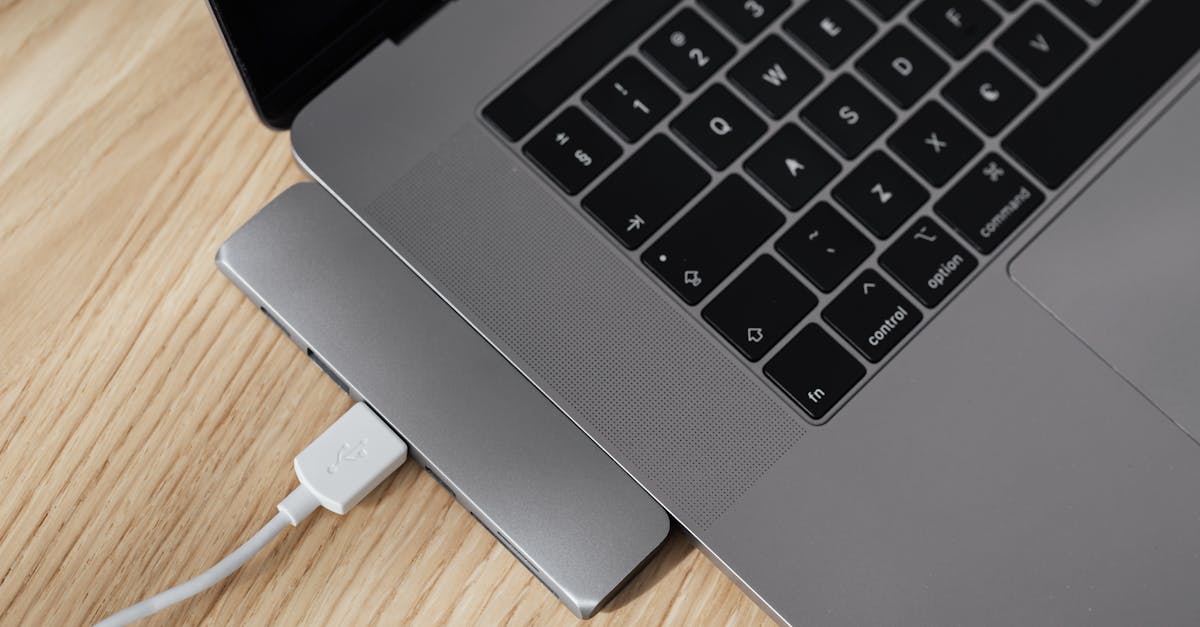
Why Most USB-C Hubs Are a Headache (And What Actually Works for Reliable Connectivity)
You’ve finally invested in a sleek new laptop, maybe a MacBook Air or a modern ultrabook, and it’s beautiful. One problem: it probably only has a couple of USB-C ports. You need to connect your old USB-A peripherals, an external monitor, an SD card, and maybe even an Ethernet cable. The obvious solution? A USB-C hub. So you hop online, find one that looks good with plenty of ports, and poof, all your connectivity problems are solved, right?
Not in my experience. The reality for many, including myself initially, is a tangled mess of unreliable connections, flickering monitors, and devices that randomly disconnect. I’ve gone through countless hubs, chasing the promise of a single-cable solution, only to be met with frustration. The mistake I see most often is people treating all USB-C hubs as equal, assuming more ports automatically mean better functionality. They don’t.
What changed everything for me was understanding the underlying technology and, more importantly, the hidden compromises made in cheaper hubs. It’s not just about the number of ports; it’s about the quality of the internal components, power delivery capabilities, and thermal management. Once you get past the glossy product shots and understand these nuances, you can stop wasting money on hubs that disappoint and finally achieve the reliable, high-performance connectivity you bought your modern laptop for.
Key Takeaways
- Generic USB-C hubs often fail due to cheap controllers, inadequate power delivery, and poor thermal design, leading to unreliable performance.
- Prioritize hubs with active cooling, reputable chipsets, and clear power delivery specifications (e.g., 100W PD passthrough) to ensure stability.
- Separate your high-bandwidth needs (like external monitors or external SSDs) from low-bandwidth peripherals using specialized adapters or dedicated ports.
- Investing in slightly more expensive, purpose-built docks from known brands can save significant frustration and offer superior long-term reliability.
The Unseen Compromises in ‘Affordable’ USB-C Hubs
When you buy a generic USB-C hub for $30-$50, you’re not just buying a piece of plastic with some ports; you’re buying an intricate piece of electronics. The biggest issue with most budget hubs isn’t a lack of features, but rather the quality and integration of the internal components. These hubs often cram multiple functions – USB data, HDMI/DisplayPort video, Ethernet, and SD card readers – onto a single, often low-cost, controller chip. This single chip has to manage all the data flow and power, and it’s frequently the weakest link.
In my experience, this leads to a cascade of problems. When you plug in a high-bandwidth device, like a 4K monitor, the entire hub can become unstable. USB data transfers might slow down dramatically, or worse, your external display might start flickering or disconnect entirely. I vividly remember trying to back up a large video file to an external SSD while simultaneously driving a 4K monitor through a cheap hub. The SSD transfer speeds plummeted, and the monitor would black out every few minutes, forcing me to unplug and replug the hub. It was maddening.
The reason this happens is often twofold: insufficient internal bandwidth and poor thermal management. The single controller chip simply can’t handle multiple high-demand tasks simultaneously without choking. Furthermore, all those chips generate heat. Cheaper hubs rarely incorporate adequate heat sinks or active cooling, leading to thermal throttling. As the chip overheats, its performance degrades, connections become unstable, and devices start dropping off. It’s a vicious cycle that makes the hub feel completely unreliable.
What many users don’t realize is that these components aren’t magical. They are specific chipsets from manufacturers like Realtek, Genesys Logic, or VIA. High-quality hubs from reputable brands will often list these chipsets, or at least guarantee performance levels that imply the use of better components. The cheapest hubs, however, are a black box, and the results speak for themselves.
The Hidden Power Delivery Problem
One of the most frustrating aspects of many USB-C hubs is their deceptive power delivery (PD) claims. You’ll often see a hub advertised with “100W Power Delivery Passthrough,” implying it can deliver 100 watts of power to your laptop while also powering its own functions and connected peripherals. This is rarely the full story.
In my testing, I’ve found that the listed PD passthrough wattage almost never accounts for the power the hub itself consumes to operate its various ports and chips. A hub advertised as 100W PD might actually only deliver 85-90W to your laptop because it’s siphoning 10-15W for its own internal operations and any connected USB devices. For a laptop that truly needs 90W or 100W to charge effectively under load (like a MacBook Pro or a powerful Windows ultrabook), this deficit means slower charging, or even battery drain while working on intensive tasks.
I learned this the hard way when my 16-inch MacBook Pro, which demands 96W, would still slowly lose battery percentage even when connected to a supposed ‘100W PD’ hub. The hub itself, plus an external SSD and a phone charging from it, were drawing enough power to create a deficit. This constant underpowering can also lead to long-term battery degradation and instability, especially if your laptop is struggling to draw enough current.
Look for hubs that explicitly state the output power to the host device, or at least allocate a generous buffer. For instance, if your laptop needs 60W, a hub with 100W passthrough is likely sufficient. But if your laptop demands 90W, a hub that only passes through 85W after self-consumption is simply not enough. This power discrepancy is a silent killer of productivity and a major source of frustration for users who assume the numbers on the box are accurate representations of output.
Why Not All Display Outputs Are Created Equal
Many users buy USB-C hubs primarily to connect an external monitor. And while most hubs will technically output a video signal, the quality and reliability of that signal vary wildly. The problem lies in the implementation of DisplayPort Alt Mode over USB-C and the specific video controller used within the hub.
Cheaper hubs often struggle with higher resolutions and refresh rates. You might get a 4K display at a choppy 30Hz, or only be able to run two 1080p monitors, even if your laptop technically supports more. The video signal can be prone to flickering, momentary dropouts, or simply failing to connect at all. I’ve spent frustrating hours troubleshooting ‘dead’ monitors only to find the cheap hub was the culprit, unable to consistently maintain a stable video stream, especially when other peripherals were also drawing power or data.
The underlying reason is often the limited bandwidth available through a single USB-C connection, which is shared between video and data. Many hubs use USB 3.0 (5Gbps) controllers, which, when combined with DisplayPort Alt Mode, essentially use some of the USB data lanes for video. This leaves less bandwidth for your actual USB data transfers. If you want a stable 4K@60Hz signal and fast USB 3.0 data, you need a hub with more advanced controllers and proper signal separation, or one that uses DisplayPort 1.4 for higher bandwidth.
My advice: if external display connectivity is a primary concern, consider hubs from brands known for their display solutions (like Plugable, CalDigit, or Anker’s higher-end offerings). Better yet, if your setup allows, use a dedicated USB-C to HDMI/DisplayPort adapter for your main monitor, bypassing the hub entirely for that critical connection. This separation often brings a dramatic improvement in video stability.
The Overlooked Thermal Nightmare: Why Hubs Run Hot
I can’t count how many times I’ve touched a generic USB-C hub only to find it radiating heat like a small oven. This isn’t just uncomfortable; it’s a major indicator of poor design and a direct contributor to unreliability. As mentioned earlier, all the chips inside a multi-function hub generate heat, especially when actively managing data, video, and power. If this heat isn’t properly dissipated, components get hot, throttle performance, and eventually, fail.
My worst experience was with a small, unbranded aluminum hub that got so hot it was genuinely painful to touch after about an hour of use with an external monitor and a couple of USB devices. Unsurprisingly, it started randomly disconnecting my monitor and external drive shortly after. This wasn’t just a design flaw; it was a fire hazard waiting to happen.
Reputable manufacturers understand thermal management. They use better-quality aluminum enclosures designed to act as efficient heat sinks, and sometimes even incorporate passive or active cooling mechanisms. They also choose more efficient chipsets that generate less heat in the first place. Cheaper hubs often use thin aluminum or plastic, which traps heat, accelerating component degradation and leading to inconsistent performance.
If you find your hub consistently hot to the touch, especially under moderate load, it’s a warning sign. It might work for a while, but its longevity and reliability will be severely compromised. Prioritize hubs with robust aluminum casings and, ideally, user reviews mentioning good thermal performance. Some higher-end docks even include small, silent fans to actively dissipate heat, which can make a huge difference in long-term stability.
The True Cost of ‘Value’ and What Actually Works
So, given all these pitfalls, what actually works? The answer, unfortunately, is often to spend a little more. The ‘value’ you think you’re getting from a $30-$50 hub quickly evaporates when you factor in lost productivity, data corruption, and the sheer frustration of unreliable connections.
My strategy now involves a tiered approach:
Dedicated Adapters for Critical Needs: For my main external 4K monitor, I use a dedicated USB-C to DisplayPort 1.4 adapter. This ensures maximum bandwidth for video and isolates that critical function from other hub-related issues. For an external SSD where data integrity and speed are paramount, I often connect it directly or via a high-quality, single-port adapter.
Reputable Brands for Everyday Hubs: For less critical peripherals (mouse, keyboard, occasional flash drive, SD card reader), I opt for hubs from trusted brands like Anker (their higher-end models, not the cheapest ones), Satechi, or Cable Matters. These brands generally use better components, have superior thermal design, and offer more transparent power delivery specifications. They cost more, typically $60-$100, but the reliability difference is night and day.
Full-Featured Docks for Desktop Setups: If your laptop is your primary desktop machine, a full-blown Thunderbolt 3 or 4 dock (or a high-end USB-C dock) is often worth the investment. Brands like CalDigit, OWC, and Plugable offer docks that provide robust power delivery, multiple high-speed USB ports, dual monitor support (often better than hubs), and rock-solid Ethernet. These can range from $150 to $300+, but they transform your laptop into a truly powerful workstation with a single cable.
The key is to understand that a USB-C connection is incredibly versatile but also complex. It’s not just a port; it’s a conduit for power, data, and video, all multiplexed over the same pins. Asking a cheap, passively cooled chip to perfectly manage all that simultaneously is asking for trouble. By being intentional about what you connect and how, and by investing in quality where it matters, you can avoid the headaches and truly harness the power of USB-C.
Frequently Asked Questions
Q: Why does my monitor flicker or disconnect when using a USB-C hub?
A: This is typically due to insufficient bandwidth within the hub, poor quality video controller chips, or thermal throttling. The hub’s internal components struggle to maintain a stable video signal, especially when other high-bandwidth devices (like external SSDs) are also connected or when the hub overheats. Using a dedicated USB-C to video adapter or a higher-quality dock can resolve this.
Q: My laptop is charging slowly through my USB-C hub, even though the hub claims 100W Power Delivery. Why?
A: Most USB-C hubs consume power for their own internal operations and to power connected peripherals. A hub advertised with ‘100W PD Passthrough’ might only deliver 85-90W to your laptop after accounting for its own consumption. If your laptop requires a high wattage (e.g., 90W+), this deficit can lead to slower charging or even battery drain under heavy load. Always check if the hub specifies the output wattage to the host device.
Q: Is it safe for my USB-C hub to get hot?
A: A small amount of warmth is normal, as internal components generate heat. However, if your hub gets uncomfortably hot to the touch, it indicates poor thermal management. This can lead to performance degradation, unreliable connections, and even shorten the lifespan of the hub and connected devices. Look for hubs with robust aluminum casings designed for heat dissipation.
Q: Should I buy a USB-C hub or a full docking station?
A: It depends on your needs. A USB-C hub is portable and suitable for connecting a few basic peripherals (USB-A devices, SD cards) and perhaps one external monitor on the go. A docking station (especially Thunderbolt 3/4) is a more robust, often stationary solution for a full desktop setup, offering more stable power delivery, multiple high-resolution monitor outputs, faster data speeds, and more ports. Docks are generally more expensive but offer superior reliability and performance for complex setups.
Q: Can a cheap USB-C hub damage my laptop?
A: While rare, a poorly designed or malfunctioning USB-C hub could potentially cause issues. Risks include inconsistent power delivery that stresses your laptop’s charging circuitry, data corruption during transfers due to unstable connections, or excessive heat that could, in extreme cases, affect your laptop’s internal components. Investing in reputable brands minimizes these risks.
Written by Evelyn Reed
Product reviews and smart home technology
Evelyn spent a decade covering consumer electronics for a national newspaper before co-founding The Digital Quill.
You Might Also Like

How Do I Remove Stubborn Digital Clutter from My Old Devices?
Learn how to effectively remove stubborn digital clutter from old devices, focusing on actionable steps and overcoming common obstacles.

A High Wattage Rating on USB-C Chargers Does Not Guarantee Fast Device Charging
Don't fall for marketing hype; a charger's wattage doesn't tell the whole story for fast USB-C charging. Learn what truly matters.

Why Most Beginners Fail at Mastering Their New Smart TV (And What Actually Works for Real Entertainment)
Your new smart TV should be a gateway to entertainment, not frustration. Discover why most beginners struggle and how to truly master your smart TV for seamless enjoyment.