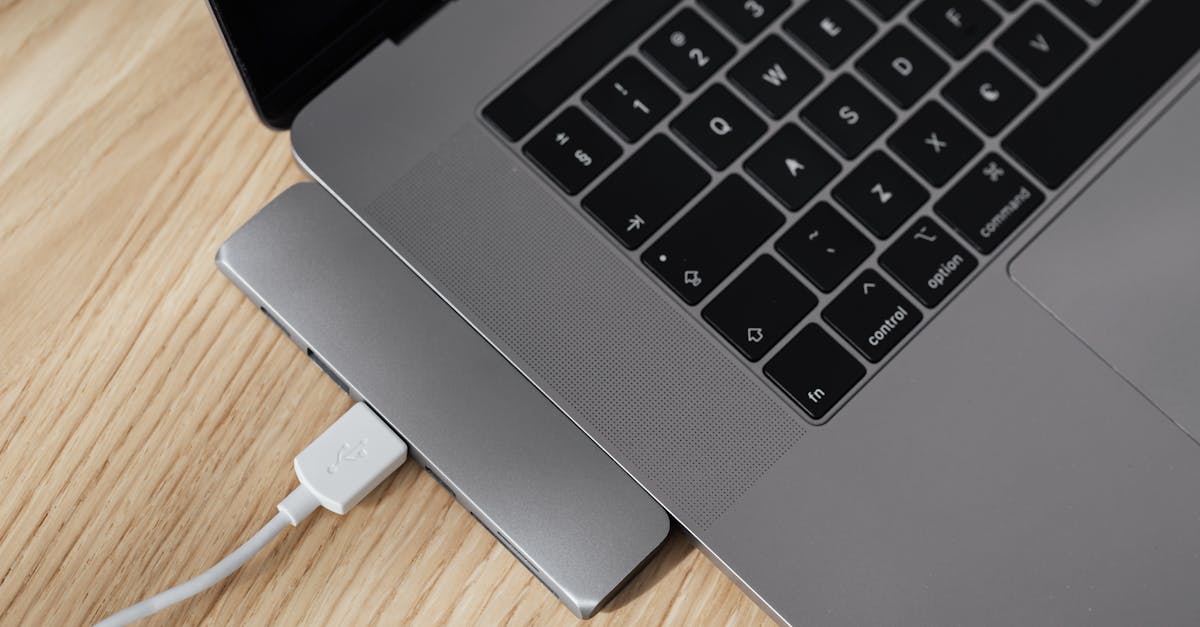
Why Most USB Hubs Disappoint (And What Actually Works for Reliable Connectivity)
You’ve been there. You just bought that sleek, multi-port USB-C hub for your new ultrabook, expecting it to be the one-stop solution for all your peripherals: external monitor, keyboard, mouse, SSD, maybe even an Ethernet connection. You plug it in, and for a glorious few minutes, everything works. Then, a flicker. Your external display goes black. Your mouse lags. The file transfer to your external SSD stalls. Frustration mounts as you unplug, replug, reboot, and the cycle of instability continues. What gives?
In my experience working with countless setups, the biggest mistake most people make with USB hubs is assuming they’re all created equal. They look similar, promise the same features, and often come with enticing price tags, yet a vast majority fall short of delivering reliable, consistent performance. It’s not just about port count; it’s about a complex interplay of power delivery, data bandwidth, internal component quality, and often, the silent battle against electrical interference. I’ve personally wasted countless hours and dollars on hubs that promised the world but delivered only headaches. The secret isn’t in buying the most expensive, but understanding the underlying technical limitations and how manufacturers often cut corners.
Key Takeaways
- Generic, unpowered USB hubs often lack sufficient power delivery and proper shielding for stable, multi-device connectivity.
- Always prioritize powered USB hubs, especially for power-hungry devices or when connecting multiple peripherals simultaneously.
- Pay close attention to the specific USB standard (e.g., USB 3.0 vs. USB 3.2 Gen 2) and its associated data bandwidth for performance-critical peripherals like external SSDs or 4K monitors.
- Investing in hubs from reputable brands that specify internal component quality and robust power solutions will save you long-term frustration and potential data loss.
The Silent Killer: Insufficient Power Delivery
When most people buy a USB hub, they look at the number of ports and the advertised data speed. What they often overlook is power. This is, hands down, the single biggest reason why USB hubs disappoint. A typical unpowered USB hub draws all its power directly from the host device (your laptop, desktop, or tablet). While a single USB 3.0 port on your computer can theoretically supply up to 900mA (0.9A) of current, this is a shared resource, and it’s rarely sufficient for more than one or two low-power devices plugged into a hub.
Think about it: you connect a mechanical keyboard (which can draw 500mA), a gaming mouse (100mA), an external 2.5-inch SSD (up to 900mA during spin-up), and maybe a webcam (300mA). Suddenly, your hub needs to deliver close to 2 amps of power, but your computer’s single USB port can only provide 0.9 amps. The result? Unreliable connections, devices dropping off, slow data transfers, and sometimes, the entire hub simply stops working. Your laptop might even warn you of a USB overcurrent event.
What changed everything for me was switching exclusively to powered USB hubs. These hubs come with their own dedicated power adapter that plugs into a wall outlet. This external power supply provides the necessary juice to all connected devices, relieving your computer’s USB port from the strain. This isn’t just about raw power; it also stabilizes the voltage and current, preventing the brownouts that cause intermittent disconnects. For anyone connecting more than a basic mouse and keyboard, a powered hub is non-negotiable. It provides a consistent, reliable power source that all your peripherals will thank you for, ensuring they operate at their full potential without starving for electricity.
The Bandwidth Bottleneck You Didn’t See Coming
Another critical, often misunderstood factor is data bandwidth. Many hubs proudly display ‘USB 3.0’ or ‘USB 3.1 Gen 1’ (which are essentially the same, offering 5Gbps). While 5Gbps sounds like a lot, it’s a shared bandwidth for all devices connected to that hub. If you’re only connecting a keyboard, mouse, and a USB stick, 5Gbps is fine. But if you’re plugging in an external NVMe SSD capable of 10Gbps or even 20Gbps (USB 3.2 Gen 2 or Gen 2x2) through a 5Gbps hub, you’re bottlenecking that drive immediately. Even worse, if you’re simultaneously transferring a large file to that SSD and streaming high-resolution video from a webcam, and outputting to an external display via the hub’s HDMI port, all that data competes for the same limited bandwidth.
In my setup, I learned this the hard way when my 4K monitor would flicker or refuse to connect at full resolution while simultaneously transferring large video files. The fix was two-fold. First, understand the actual USB standard your computer’s port supports (USB 3.2 Gen 2, Thunderbolt 3/4). Second, and more importantly, choose a hub that matches or exceeds the required bandwidth for your most demanding devices. For 4K displays or high-speed external storage, look for hubs that explicitly state USB 3.2 Gen 2 (10Gbps) or, ideally, Thunderbolt 3/4 (40Gbps) if your host computer supports it. Thunderbolt hubs, while more expensive, offer dedicated PCIe lanes for each port, virtually eliminating bandwidth bottlenecks for a truly seamless experience with multiple high-demand peripherals. Don’t let a cheap hub downgrade your expensive SSD or monitor.
The Hidden Flaw: Build Quality and Internal Components
Many budget USB hubs are essentially empty shells with the cheapest possible internal chipsets and minimal shielding. This often leads to a host of subtle, yet infuriating problems. I’ve encountered hubs that generate excessive heat, causing performance throttling or even premature failure of connected devices. Others suffer from poor electromagnetic shielding, leading to interference with Wi-Fi, Bluetooth, or even audio signals – a common culprit for choppy wireless mouse movements or static in headphones when a hub is active.
What changed my perspective on hub quality was a deep dive into reviews and forum discussions, specifically looking for mentions of chipset brands (like Realtek, VIA Labs, or Genesys Logic) and thermal performance. Investing in hubs from reputable brands, even if slightly more expensive, usually means higher quality internal controllers, better power regulation circuitry, and superior shielding. These subtle differences translate to more stable connections, less heat, and a lower chance of mysterious disconnects. It’s the difference between a device that just works and one that constantly demands your attention to troubleshoot. Prioritize hubs with metal casings over plastic, as metal often provides better heat dissipation and shielding.
The Port Placement Puzzle and Cable Calamity
While not strictly a performance issue, poor port placement can turn a seemingly functional hub into a frustrating mess. If all ports are crammed together, you might find larger USB devices (like certain flash drives or Wi-Fi dongles) blocking adjacent ports. Similarly, stiff, short cables on the hub itself can put strain on your laptop’s USB port or make it difficult to position the hub conveniently on your desk.
My advice here is practical: look for hubs with well-spaced ports and, if possible, a longer, flexible host cable. Some hubs offer ports on multiple sides, which can be incredibly useful. For hubs that are meant to stay on your desk, a longer cable allows you to route it cleanly, preventing clutter and reducing stress on connections. For portable hubs, while a shorter cable can be convenient, ensure it’s still flexible enough to not pull awkwardly on your laptop’s port. The quality of the host cable itself is also crucial; cheap cables can introduce resistance, reducing power delivery and data integrity.
The Smart Hub Strategy: Tiered Connectivity for Diverse Needs
The ultimate solution to USB hub disappointment isn’t always a single, monolithic hub. In my personal and professional setups, a tiered approach has proven far more effective. This involves recognizing that not all devices have the same demands and segmenting them accordingly.
For example, I use a high-end Thunderbolt dock (if my laptop supports it, otherwise a robust USB-C hub with DisplayPort Alt Mode and 10Gbps USB-A ports) as the primary connection to my main external monitor, an external NVMe SSD, and my wired Ethernet. This handles the highest bandwidth and power needs. Then, for lower-power, less critical devices like my keyboard, mouse receiver, and a USB microphone, I might use a secondary, smaller powered USB-A hub connected to one of the Thunderbolt dock’s USB-A ports. This setup offloads the less demanding peripherals, frees up crucial bandwidth on the main connection, and ensures a stable, dedicated power supply for everything.
This strategy acknowledges that a single hub trying to do everything often compromises on too many fronts. By distributing your devices based on their needs, you create a more resilient and higher-performing connectivity ecosystem. It might seem like an extra step, but the reduction in troubleshooting time and the boost in reliability are well worth the initial planning.
Frequently Asked Questions
Q: What is the difference between a USB hub and a docking station?
A: A USB hub primarily expands the number of USB ports, often with limited additional functionality. A docking station is a more comprehensive device that typically offers a wider range of ports (HDMI, DisplayPort, Ethernet, audio jacks) and robust power delivery, essentially replicating a desktop experience for laptops. While some high-end USB-C hubs blur the line, true docking stations usually leverage more advanced protocols like Thunderbolt for superior performance with multiple displays and high-speed peripherals.
Q: Why do my devices keep disconnecting from my USB hub?
A: The most common reason is insufficient power delivery from an unpowered hub, especially when connecting multiple power-hungry devices like external hard drives, webcams, or charging phones. Other culprits include a bandwidth bottleneck, poor quality internal components leading to instability, or electromagnetic interference. Switching to a powered hub is often the first and most effective solution.
Q: Is it safe to leave my USB hub plugged in all the time?
A: Yes, generally it is safe. However, if you are using an unpowered hub with many devices, it can draw continuous power from your host device, potentially reducing battery life or causing minor heat. Powered hubs are designed for continuous use, but it’s always good practice to disconnect devices you aren’t using to reduce power consumption and potential wear.
Q: Can a USB hub slow down my computer?
A: A poorly designed or overloaded USB hub can indirectly impact your computer’s performance. If the hub is drawing too much power, it can strain your laptop’s power supply. If it’s creating a data bottleneck, applications relying on fast external storage may slow down. Electromagnetic interference can also disrupt wireless components, making your overall experience feel sluggish. A high-quality, properly powered hub should not noticeably slow down your computer.
Q: Should I buy a USB-A hub or a USB-C hub?
A: This depends on your host computer and your peripherals. If your computer has USB-C/Thunderbolt ports, a USB-C hub is often preferable as it can offer higher bandwidth (up to 10Gbps or 40Gbps for Thunderbolt) and power delivery capabilities, supporting more demanding devices and external displays. If your computer only has traditional USB-A ports, then a USB-A hub is your only option. Many modern hubs come with a USB-C connector to the host but provide a mix of USB-A and USB-C ports for peripherals.
Conclusion
The world of USB connectivity is far more nuanced than simply counting ports. The consistent frustration many users experience with USB hubs stems from a fundamental misunderstanding of power delivery, data bandwidth, and the impact of internal component quality. My journey through countless unreliable setups ultimately led me to one core truth: invest in quality, and understand the ‘why’ behind the ‘what.’
Stop settling for hubs that barely get the job done or introduce intermittent problems. Prioritize powered hubs, match bandwidth to your most demanding peripherals, and choose reputable brands known for solid build quality. By adopting a smarter, perhaps tiered, approach to your connectivity, you can eliminate the headaches and build a stable, high-performing workspace that truly empowers your digital life. Your time is too valuable to spend troubleshooting flimsy connections. Make the upgrade; your productivity will thank you.
Written by Marcus Thorne
Software analysis and cybersecurity tips
A former software engineer, Marcus transitioned into tech journalism to explain complex digital concepts in simple terms.
You Might Also Like

How Do I Remove Stubborn Digital Clutter from My Old Devices?
Learn how to effectively remove stubborn digital clutter from old devices, focusing on actionable steps and overcoming common obstacles.

A High Wattage Rating on USB-C Chargers Does Not Guarantee Fast Device Charging
Don't fall for marketing hype; a charger's wattage doesn't tell the whole story for fast USB-C charging. Learn what truly matters.

Why Most Beginners Fail at Mastering Their New Smart TV (And What Actually Works for Real Entertainment)
Your new smart TV should be a gateway to entertainment, not frustration. Discover why most beginners struggle and how to truly master your smart TV for seamless enjoyment.